Overview
This guide explains how to apply a license to your Power BI visual using a Power BI Theme file. The license details are added to the theme. Then Power BI admin publishes this theme as Organizational Theme. Once published, it is automatically available across all reports — without any manual configuration by individual users.
Learn More about Power BI Themes.
Why Use Themes for License Management?
- Centralized Control: Manage licenses across your entire organization from one theme file. The theme can be published at the organization level for broader application.
- Batch Application: Apply a license to all visual instances at once—no manual entry needed for each visual instance.
- Simplified User Experience: Developers or Report Authors don't worry about licensing; the theme handles it automatically.
How to create/modify Themes?
Step 1: Prepare the Theme File
If you are already using a theme, you can use that theme file and modify it. Otherwise you can create a new theme file.
Option A — Download the Theme You are Currently Using
You can get your organization theme file or export the currently used theme using View → Themes → Save current theme menu in Power BI Desktop.
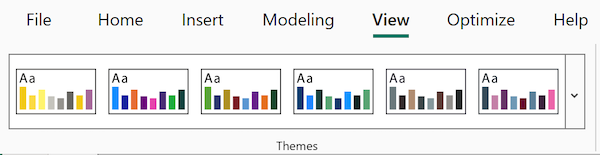
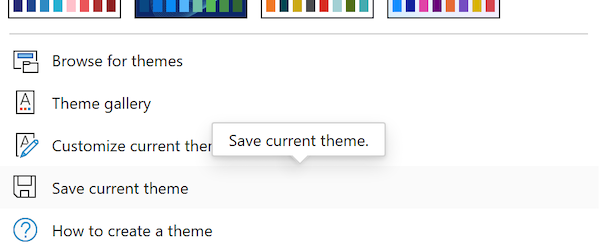
Option B — Create new Theme file
If you haven't applied any theme to your report, you can download a default theme as your starting point. OR you can download a theme from Microsoft Store.
Step 2: Add License Details in the theme
- Open the theme JSON file in any text editor (Notepad, VS Code, etc.)
- Add the following
visualStylesblock just above the last closing}of the JSON:{ ... "visualStyles": { "*": { "*": { "license": [ { "licenseName": "replace with License Name", "licenseKey": "replace with License Key" } ] } } } ...} - "replace with License Name" and "replace with License Key" should be replaced with actual license details:
{ ... "visualStyles": { "*": { "*": { "license": [ { "licenseName": "pbivizedit|2026-03-03", "licenseKey": "CD9A2-CD3YC-7OA9G-AY5F6" } ] } } } ...} - Save the file. You should have following block in the theme file:
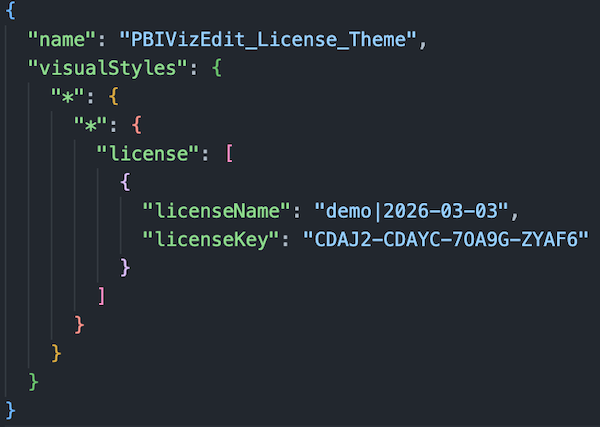
Step 3: Upload the Theme to Power BI
Option A — Organizational Theme (Recommended: Centralized, Org-wide)
This is the recommended approach for organizations. The license is applied automatically to every report that uses the theme, with no action required from individual developers.
- Ask your Power BI Admin to upload the edited JSON file as an Organizational Theme. In the Power BI Admin portal, go to Tenant settings → Organizational themes and upload the file.
- Once done, this theme will be available to all report developers. Now they can then select this theme when creating or editing a report. To do so, they can go to
View→Themes→clickon the published organizational theme. - The license will be automatically applied to all visual instances in the report.
Option B — Per-Report Setup
Use this option when an organizational theme is not viable or you need to apply the theme in a single report.
- Open your report in Power BI Desktop.
- Go to
Viewribbon →Themes→Browse for themes. - Select your edited JSON file.
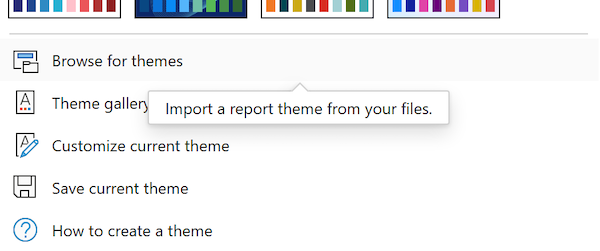
Step 4: Verify the License is Active
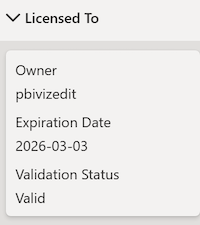
- The theme should have been applied and your visual should show licensed.
- You should see the License To section under Format visual.
Updating an Expired License
When your license expires, you need to replace the license with the new one. For this, once your theme is changed, you need to follow these additional steps for the new license to take effect:
-
Remove the old license from all the visual instances by following these steps:
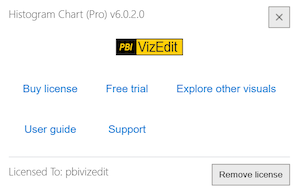
- Open the visual’s info dialog by clicking the i icon (usually located at the top-right corner of the visual).

- Click the Remove License button.
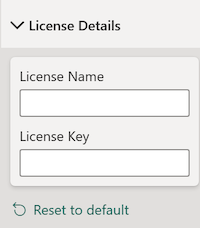
- Under Format visual → License Details, click Reset to default.
-
Save and republish the report. Visual instance should now read the new license from the updated theme.