Create SPC Variable Chart for Power BI

Create SPC Variable Chart for Power BI


Step 1 – Get the visual


You can get the visual from our website, Microsoft AppSource or Power BI desktop/web.

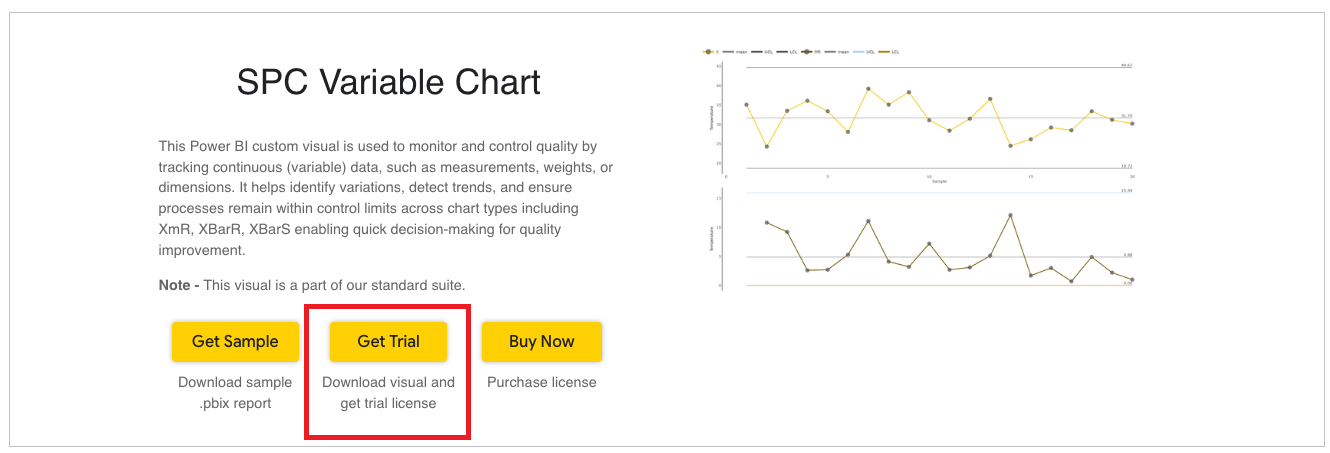
a. Website - Go to the visual page and click on 'Get Trial' button. You will be redirected to the pricing page where you will provide your email id and click on the 'Download Visual' button.
You will receive a mail which will contain the link to download .pbiviz file and a free trial license.
SPC Variable


Step 2 – Map your data in the fields available


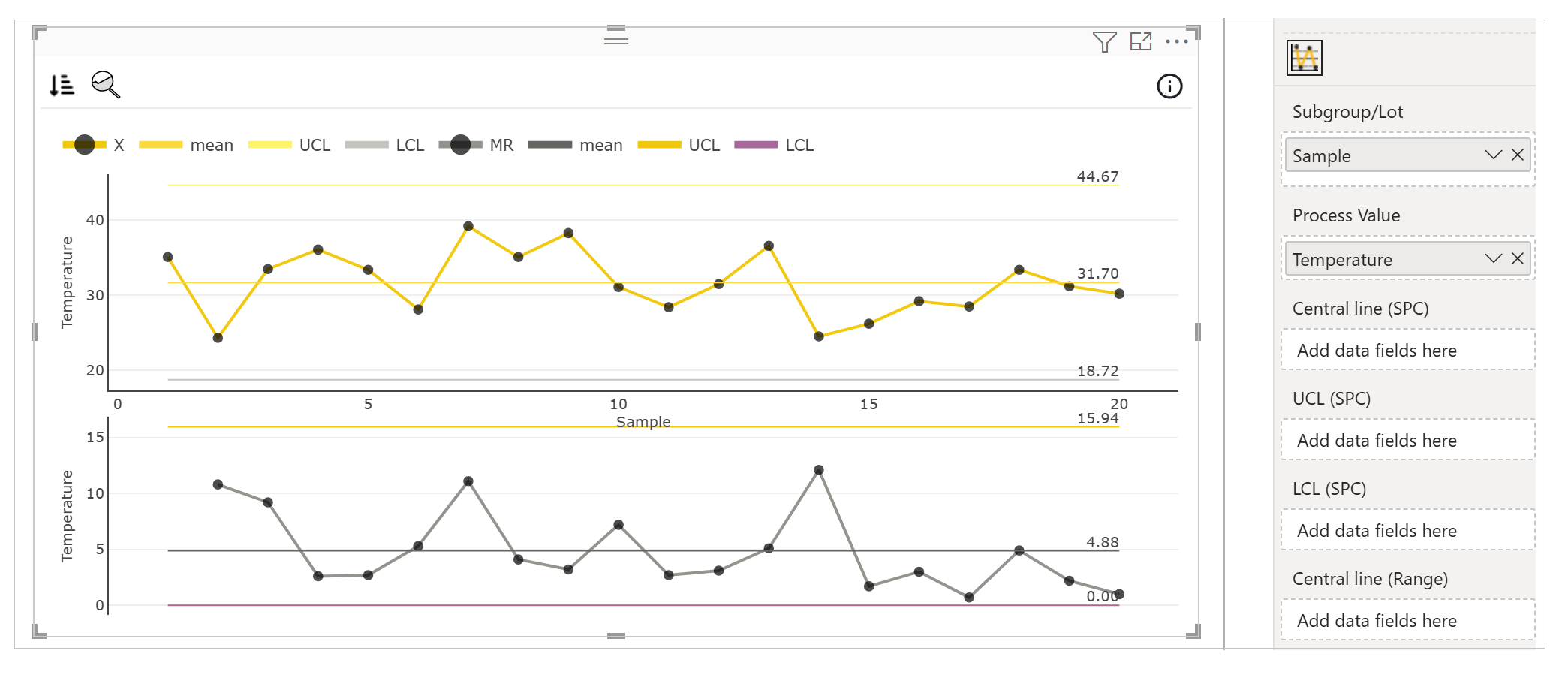
After importing the visual in Power BI, map data in the given fields. Here we have mapped 'Sample' in Subgroup/Lot and 'Temperature' in Process Value.
SPC Variable

In case you want to use Small multiples you can map the data to 'Small multiple' field. If you want to show more data in tooltip, map that data under 'Tooltip' field. If you want to use custom control limits or center line, map the data to their respective fields:

  • UCL (SPC), LCL (SPC), Central line (SPC) — for the primary SPC Variable series
  • UCL (Range), LCL (Range), Central line (Range) — for the companion SPC Range series


Step 3 – Format your visual further


a. License Details - If you want to check how your visual works in other Power BI platforms besides Power BI desktop, you have to fill License Details section.
To know more about License Details section, click here.

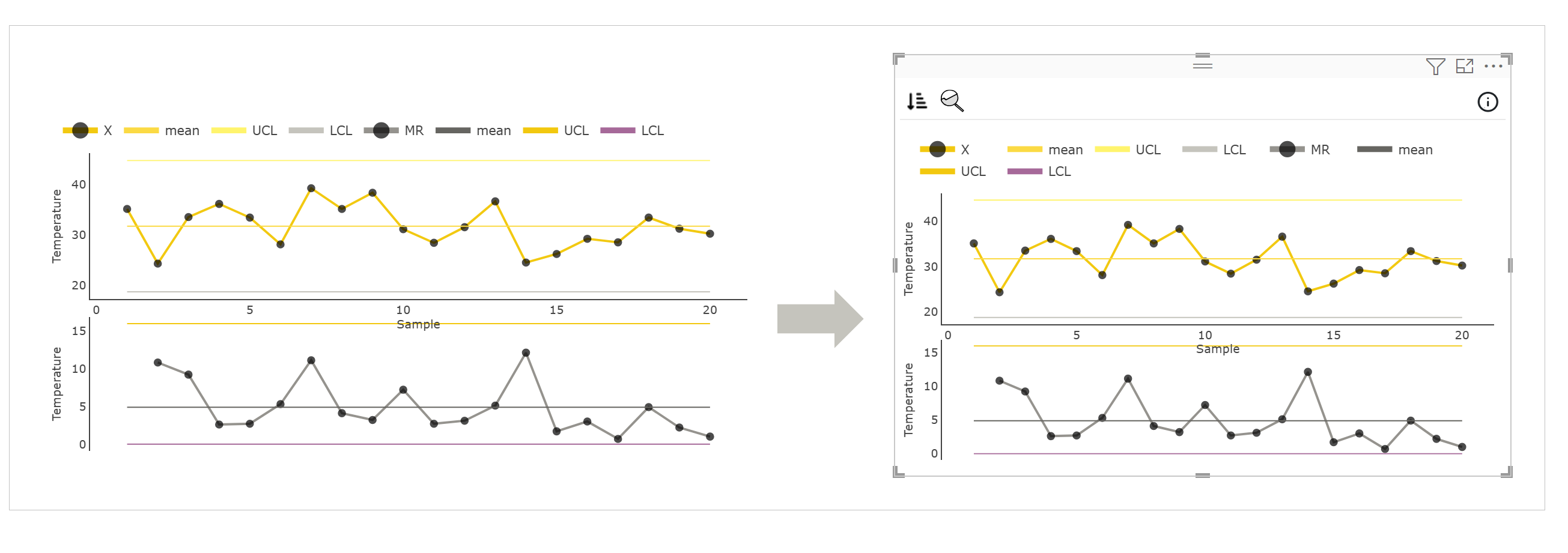
b. Layout Section – In case you don't want to see the toolbar present on the top left of the visual, you can do that by Format Visual -> Layout -> Show Toolbar switch.
SPC Variable

c. Fetch more data – In case you have lots of rows (>5000), you need to enable Fetch more data and give the number of rows that you expect in return.


d. Chart Section - Please follow this link to know more about this section.


e. X/Y Axis – You can format the X and Y Axis under these sections. You can choose axis color, axis label formatting, their placement on the screen and many more.
For more details visit Axis section.

f. SPC Variable / SPC Range Section – Under this section, all the properties related to SPC Variable and SPC Range charts can be configured.


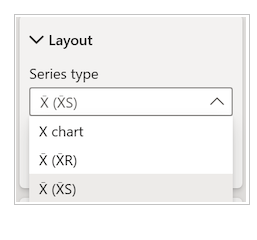
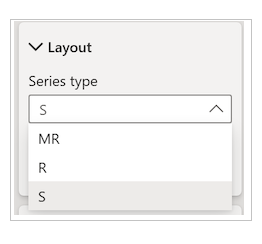
i. Layout properties – This section allows customization of the layout and is available under both SPC Variable and SPC Range sections. Both sections share the same properties — the only difference is the Series type options available in each.


The visual consists of two series that work together:

  • SPC Variable – Plots the primary control chart (individuals or subgroup means)
  • SPC Range – Plots the companion variation chart (Moving Range, Range, or Standard Deviation)

Configure both series to display the desired chart type:

  • XmR chart

    • SPC Variable: Format Visual → SPC Variable → Layout → Series Type → X chart
    • SPC Range: Format Visual → SPC Range → Layout → Series Type → MR
  • X̄R chart

    • SPC Variable: Format Visual → SPC Variable → Layout → Series Type → X̄ (X̄R)
    • SPC Range: Format Visual → SPC Range → Layout → Series Type → R
  • X̄S chart

    • SPC Variable: Format Visual → SPC Variable → Layout → Series Type → X̄ (X̄S)
    • SPC Range: Format Visual → SPC Range → Layout → Series Type → S

SPC Variable SPC Variable

  • Transparency: Sets the transparency level of the chart as a percentage (e.g., 50%)
  • Series type: Sets the chart type for the series (see chart type configuration above)

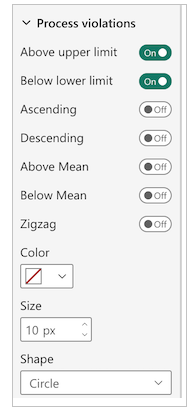
ii. Process violations – This section allows you to configure properties of the process violations. You can choose which violations you want to be highlighted on the chart.

SPC Variable

  • Above upper limit: Turn this on if point above UCL should be considered as a violation
  • Below lower limit: Turn this on if point below LCL should be considered as a violation
  • Ascending: Turn this on if consecutive ascending points should be considered as a violation and then enter the number of consecutive points in Run length
  • Descending: Turn this on if consecutive descending points should be considered as a violation and then enter the number of consecutive points in Run length
  • Above mean: Turn this on if consecutive points above mean should be considered as a violation and then enter the number of consecutive points in Run length
  • Below mean: Turn this on if consecutive points below mean should be considered as a violation and then enter the number of consecutive points in Run length
  • Zigzag: Turn this on if consecutive alternative points considered as a violation and then enter the number of consecutive points in Run length
  • Size: Sets the size of the violated point
  • Shape: Sets the shape for the violated point

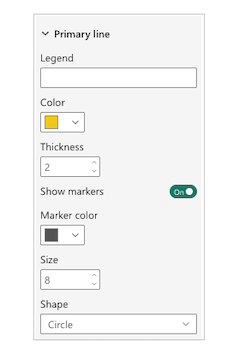
iii. Primary line - This section allows you to configure properties of the primary line.

SPC Variable

  • Legend: Sets the legend name for primary line if you don't want to be Auto
  • Color: Sets the color of the primary line
  • Size: Sets the thickness of the primary line
  • Show markers: Toggle to show or hide markers on the primary line
  • Marker color: Sets the color of the markers on the primary line
  • Marker size: Sets the size of the markers on the primary line
  • Marker shape: Sets the shape of the markers on the primary line

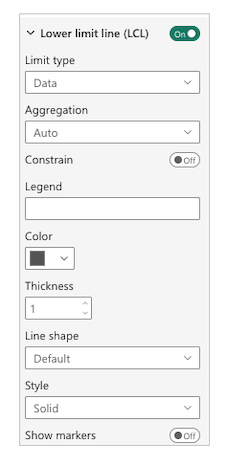
iv. Lower limit line - This section allows you to configure properties of the Lower Limit line.

SPC Variable

It has all the properties similar to Primary line section with some additional properties:

  • Limit type: Choose the type of limit (Data or Constant)
  • Constant value: Sets the constant value for LCL if Limit type is Constant
  • Lower limit aggregation: Choose the aggregation type for LCL if Limit type is Data (Auto, min, max, median, Standard deviation and Percentile)
  • Percentile: Sets the percentile value for LCL if Lower limit aggregation is Percentile
  • Std deviation: Sets the number of standard deviations for LCL if Lower limit aggregation is Standard deviation
  • Constraint: Toggle to enable or disable constraint for LCL
  • Boundary value: Sets the boundary value for LCL if Constraint is enabled
  • Style: Sets the style of the Lower limit line (Solid, Dot, Dash, etc.)
  • Line shape: Can change the shapes of line and create Smooth lines, Stepped variations by selecting the options in this field.

v. Upper limit line - This section allows you to configure properties of the Upper Limit line. It has all the properties similar to Lower limit line section.


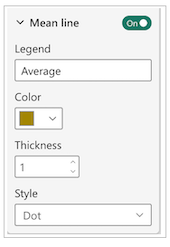
vi. Mean line - This section allows you to configure properties of the Mean line.

SPC Variable

  • It has legend, color, size, thickness and style properties similar to other lines section.

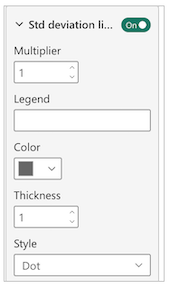
vii. Std deviation lines - This section allows you to configure properties of the Std Deviation lines.

SPC Variable

It has legend, color, thickness and style properties similar to other line section.

  • Multiplier: Sets the number of standard deviations for Std deviation lines

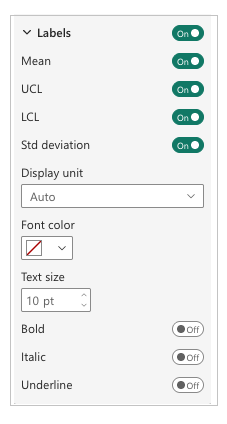
viii. Label properties - This section allows you to configure properties of the labels displayed on SPC Variable chart.

SPC Variable

  • Mean: Toggle to show or hide mean label
  • UCL: Toggle to show or hide UCL label
  • LCL: Toggle to show or hide LCL label
  • Std Deviation: Toggle to show or hide std deviation labels
  • Display unit: Sets the display unit for the labels (Auto, None, Thousands, Millions, Billions, Custom)
  • Decimal places: Sets the number of decimal places for the labels
  • Custom format: Sets the custom format for the labels
  • Font color: Sets the font color for the labels
  • Font size: Sets the font size for the labels
  • Bold, Italic, Underline: Toggle to enable or disable bold, italic and underline for the labels

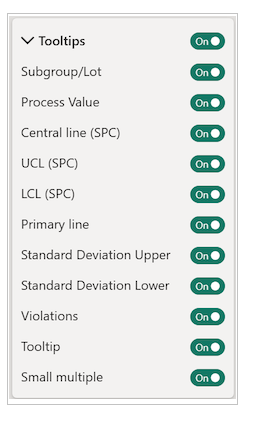
ix. Tooltips – This section allows you to turn on or off the individual tooltip fields displayed when hovering over the chart.

SPC Variable

  • Subgroup/Lot: Toggle to show or hide the Subgroup/Lot value in the tooltip
  • Process Value: Toggle to show or hide the Process Value in the tooltip
  • Central line: Toggle to show or hide the Central line value in the tooltip
  • UCL: Toggle to show or hide the Upper Control Limit value in the tooltip
  • LCL: Toggle to show or hide the Lower Control Limit value in the tooltip
  • Primary line: Toggle to show or hide the Primary line value in the tooltip
  • Standard Deviation Upper: Toggle to show or hide the Standard Deviation Upper value in the tooltip
  • Standard Deviation Lower: Toggle to show or hide the Standard Deviation Lower value in the tooltip
  • Violations: Toggle to show or hide violation information in the tooltip
  • Tooltip: Toggle to show or hide additional tooltip field data in the tooltip
  • Small multiple: Toggle to show or hide the Small multiple value in the tooltip

Step 4 – Advance Feature (Sorting)


Sorting - PBIVizEdit offers great sorting flexibility for all its visuals. Below, we have shown how to create and apply custom sorting based on the fields you choose.


For more details, visit Sorting section.